Cafés & Restaurants
QR Ordering at the Table in Cafés: Ending the Wait at Rush Hour
At morning coffee and lunchtime, cafés share the same problem: guests sit down but wait for a waiter to order. We explain how QR ordering at the table removes that wait and what to watch for when you set it up.
4 min read

Key takeaways
- The QR code on the table opens the menu on the guest’s phone and knows which table they are at; no app needed.
- Guests choose the size, extras and notes themselves; the order reaches the bar and kitchen screens in writing.
- Payment is taken at the table by card or in cash; Oquto takes no payments and no commission on orders.
- Calling the waiter and asking for the bill work from the same screen, so the service team has time for service.
Where is the real loss at rush hour?
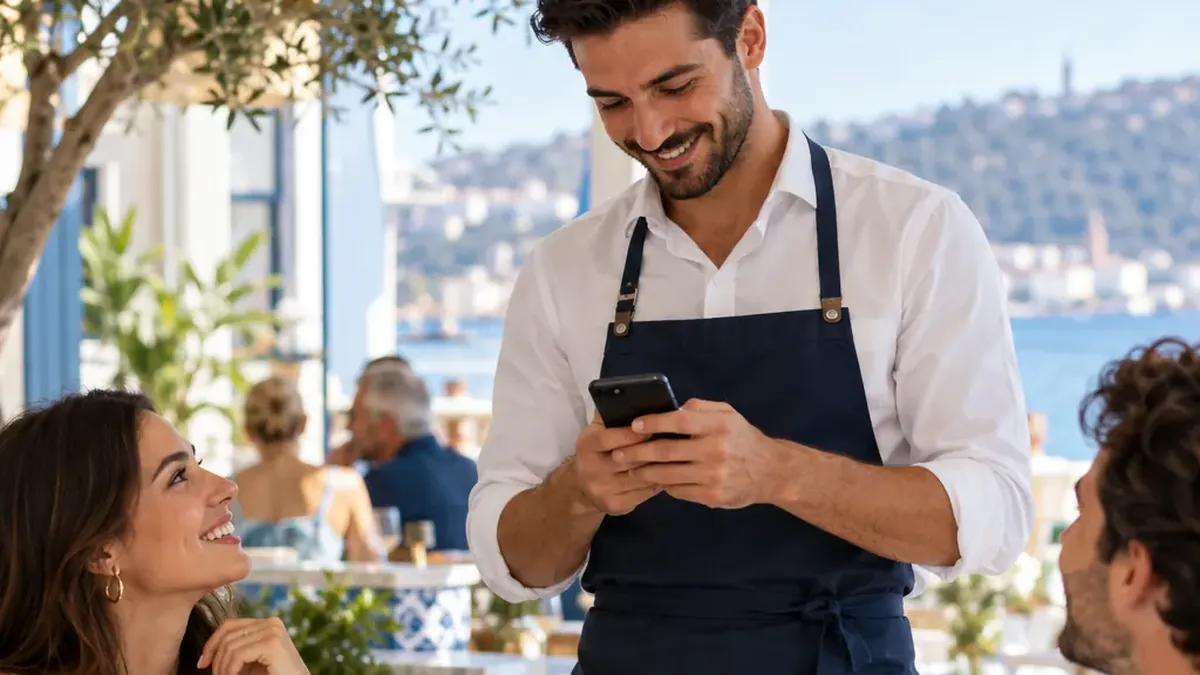
Rush hours in a café are short and intense. Guests sit down, look at the menu and wait for the waiter. The waiter, trying to reach several tables at once, is split between taking orders, bringing bills and serving. Waiting spoils the moment and can make guests skip the second coffee or the dessert.
QR ordering at the table removes this bottleneck: guests order the moment they are ready, and the order goes straight to the team that prepares it. The waiter’s job does not disappear; the time spent taking orders goes to service and to the guests.
How does it work for the guest?
1
Scan the table QR code
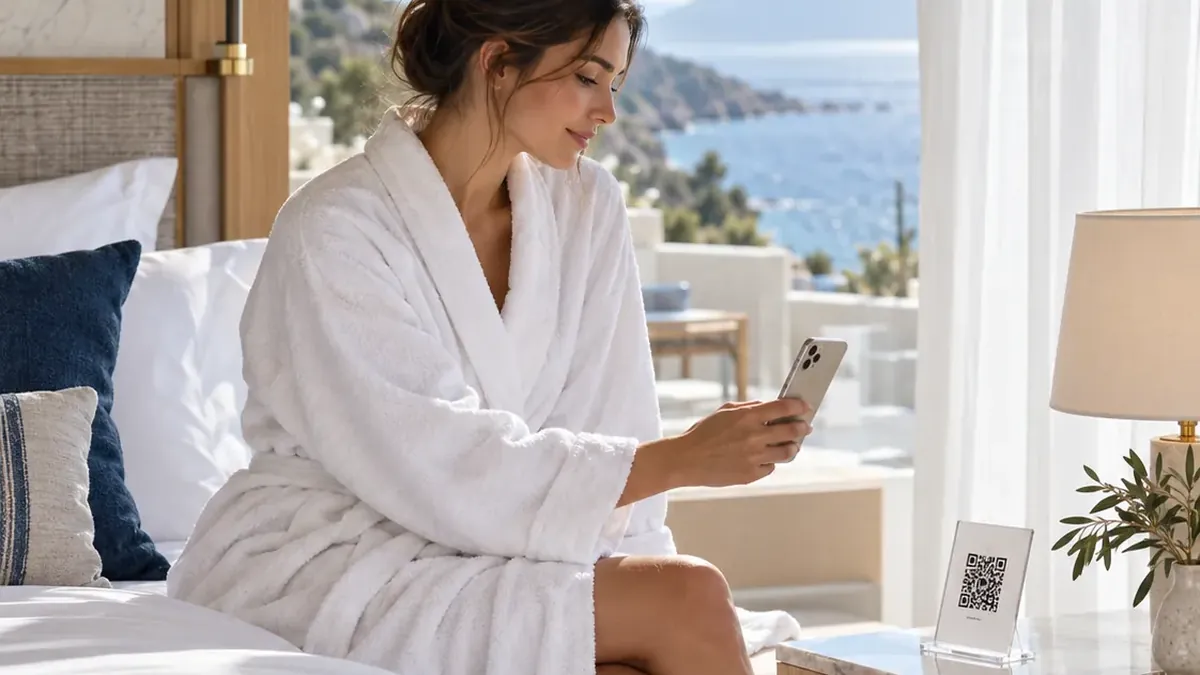
The guest scans the QR code or taps the NFC tag on the table. The menu opens knowing the table number, in the phone’s language.
2
Choose from a menu with photos
Products appear with photos and descriptions. The guest adds options such as size, an extra shot or plant milk, plus a note; allergen and dietary information is shown on every product.
3
Pick how to pay and send
The guest chooses whether to pay at the table by card or in cash and sends the order.
4
Follow it live
The order moves through received, accepted, being prepared and delivered, and the guest sees the status on the phone. Before it is accepted, the order can still be edited or cancelled.
What changes for the team?
The order lands on the bar and kitchen screens at once, with the table number. These screens open in the browser on a computer, tablet or phone; no separate device or installation is needed.
- Each team sees only its own work: the bar sees drinks, the kitchen sees food.
- An order is taken on or assigned to someone; work past its target time shows up as an alert.
- When a product runs out it is marked sold out in one tap; at peak times “kitchen busy / not taking orders” can be switched on.
- Waiter calls and bill requests reach the service team’s screen with the table number.
What to watch for when setting up
- Put a separate QR code on every table, so the table number arrives with the order.
- Do not forget terrace and garden tables; outdoor tables need their own QR codes too.
- Split your menu by time of day so that breakfast, all-day and evening menus open by themselves.
- Choose photos that show the real portion and keep descriptions short.
- Speed up setup by importing your menu from an Excel or CSV list.
How do you measure the effect?
In the management panel you see orders, best sellers, preparation times and a day-and-hour heat map. The heat map helps you use quiet hours for promotions and plan shifts around busy ones. We do not promise you figures; you measure the effect with your own data, in your own panel.
Frequently asked questions
Do we need to replace our till for QR ordering at the table?
No. Today Oquto works on its own, without a till or POS connection, so you can keep your till and the way you take payments.
Do guests pay on their phone?
No. Guests choose card or cash when ordering, and you take the payment at the table with your own till and card terminal. Oquto takes no payments.
We have several branches; can each have a different menu?
Yes. Branches sit in one account, and each branch’s menu, tables, team and settings are managed separately.
Can foreign guests read the menu in their own language?
The guest interface works in five languages and opens in the phone’s language. You publish your menu in the languages active at your venue.
See this experience in your venue
Explore the live demo, or talk to our team for a tailored quote and a free sample kit.